
Arranging a workspace
Add widgets, group them into tabs, drag them into place, resize them, minimise them and pop them out into their own windows.
Every workspace section is a grid of panels. Each panel holds one or more widgets as tabs.
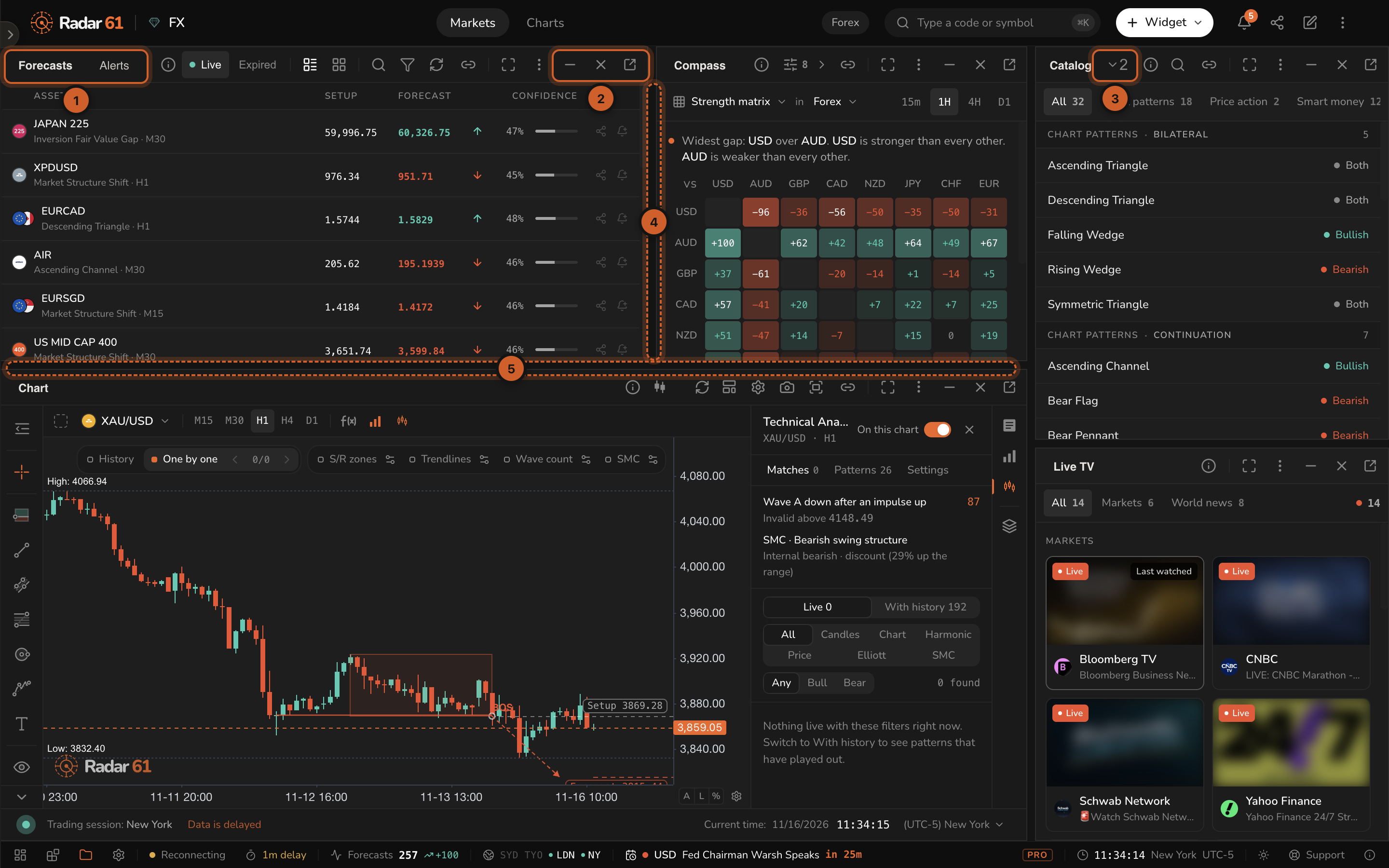
- Tabs: two widgets sharing one panel. Click a tab to switch.
- Panel controls: Minimise, Close and Pop out.
- More tabs: when a panel is too narrow, the rest of its tabs fold into this menu.
- Drag the divider between panels to resize them side to side.
- Drag the divider between rows to resize them up and down.
Adding widgets
Click + Widget in the top bar and pick a widget. It appears in the section you're on.
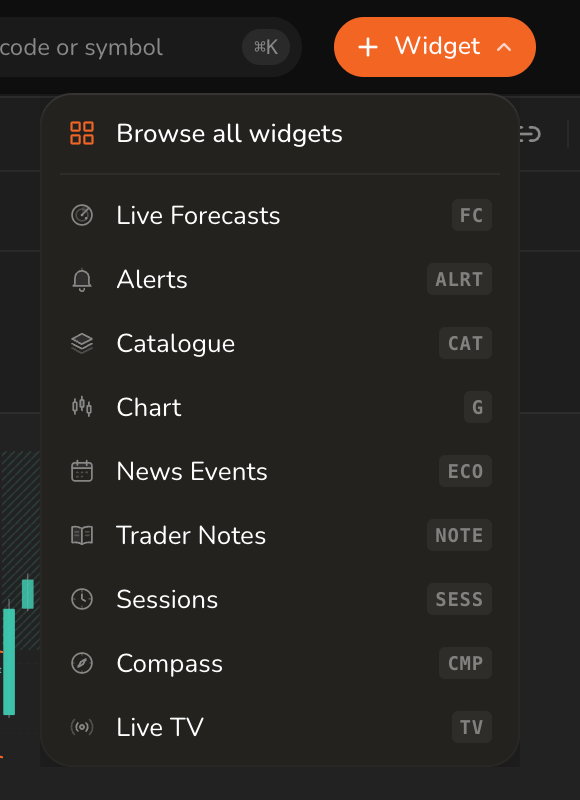
The short code next to each widget is its command. See Widget codes.
Choose Browse all widgets to see every widget with a description, filtered by Forecasts, Analysis, Reference or Tools. Select one or more, then click Add widget.
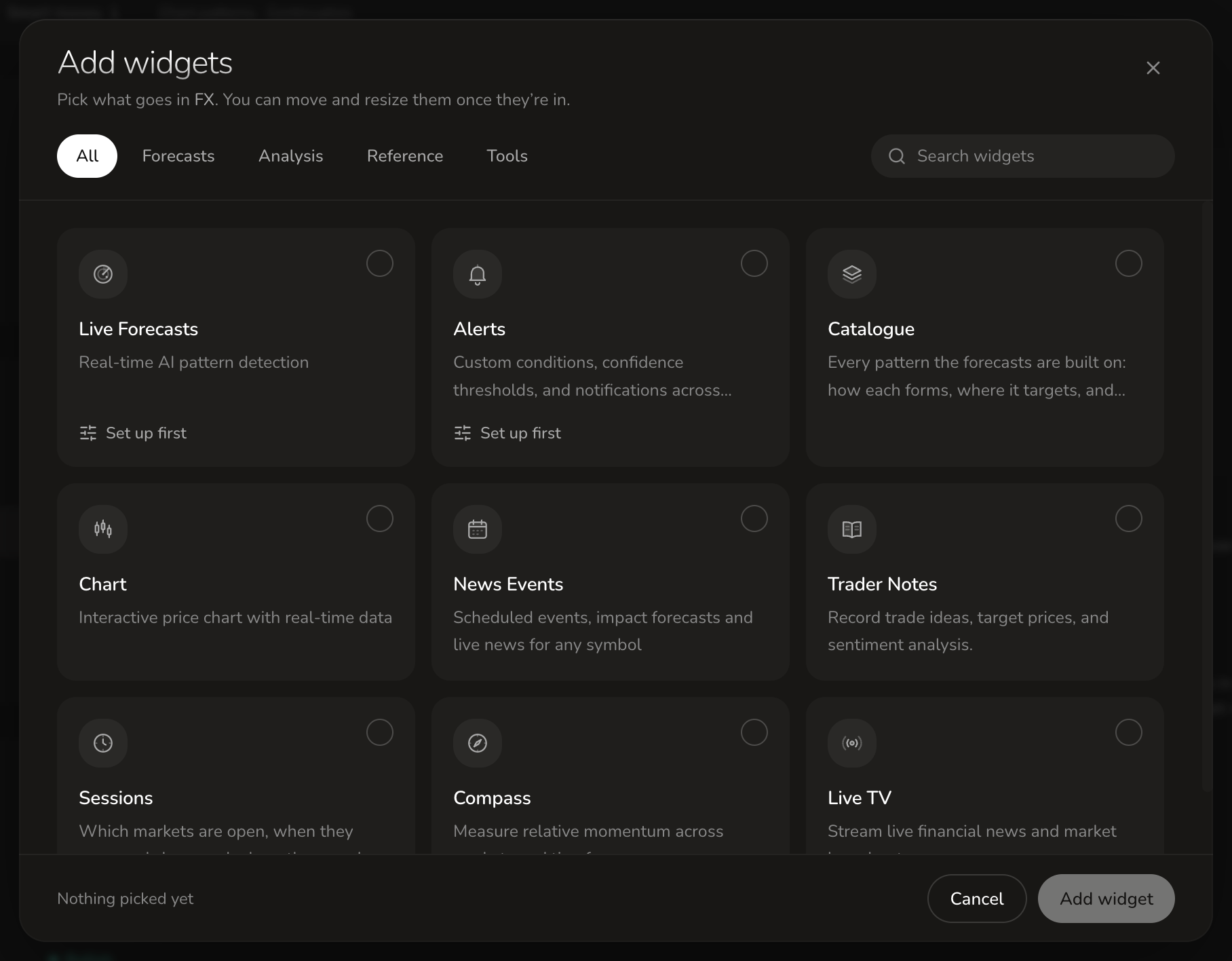
Widgets marked Set up first need a choice, such as which markets or alerts to show, before they're added.
Widget codes
Every widget has a short code. Type it in the command bar (⌘K or Ctrl+K) to open the widget, or to jump to it if it's already in the section. Put an instrument and a timeframe in front of chart codes: EURUSD G opens a EUR/USD chart, GOLD G H4 a four-hour gold chart.
| Code | Also | Opens |
|---|---|---|
| G | CHART, GP | Chart, with the forecasts drawn on it |
| FC | FCST, FORECASTS, LF | Live Forecasts |
| N | TOP, NEWS | News, top stories |
| ECO | CAL, CALENDAR, EVTS | Economic data |
| CMP | COMPASS, STR, STRENGTH | Compass |
| ALRT | ALERT, ALERTS | Alerts |
| CAT | PAT, PATTERNS, CATALOGUE | Catalogue |
| SESS | CLK, CLOCK, SESSIONS | Sessions |
| NOTE | NOTES, NT | Trader Notes |
| TV | LIVE | Live TV |
Moving widgets
- Drag a tab to another panel to group it there, or to the edge of a panel to split it.
- Drag a tab out between panels to give it a panel of its own.
- More options (⋮) on a widget can Move to section or Copy to section, Duplicate here, or Print.
Widget controls
Every widget has the same controls in its header.

- The widget's tabs in this panel.
- Help: opens the page for this widget.
- Widget tools, such as Search.
- Link widget: make the widget follow the instrument of other linked widgets.
- Expand to full width, and Restore width.
- More options.
- Minimise: folds the widget down to its header. Click again to expand it.
- Close widget: removes it from the section.
- Pop out: opens the widget in a floating window you can move anywhere. Dock in to workspace puts it back.
- Widget content, here the Catalogue's tabs.
Linking widgets
Link widget joins widgets so they follow one instrument together. Change the symbol on a linked chart and the other linked widgets, such as News Events, follow it.
Saving
Workspace layouts save automatically as you change them, and follow your account to every device.