
Navigating Radar 61
The sidebar takes you anywhere, the command bar gets you there faster, and the status bar keeps the market state in view on every screen.
Every screen in Radar 61 shares the same frame: a sidebar on the left, a top bar with search and notifications, and a status bar along the bottom.
The sidebar
Click the small arrow at the left edge of the screen to open the sidebar. Pin it to keep it open, or leave it unpinned and it tucks away while you work.
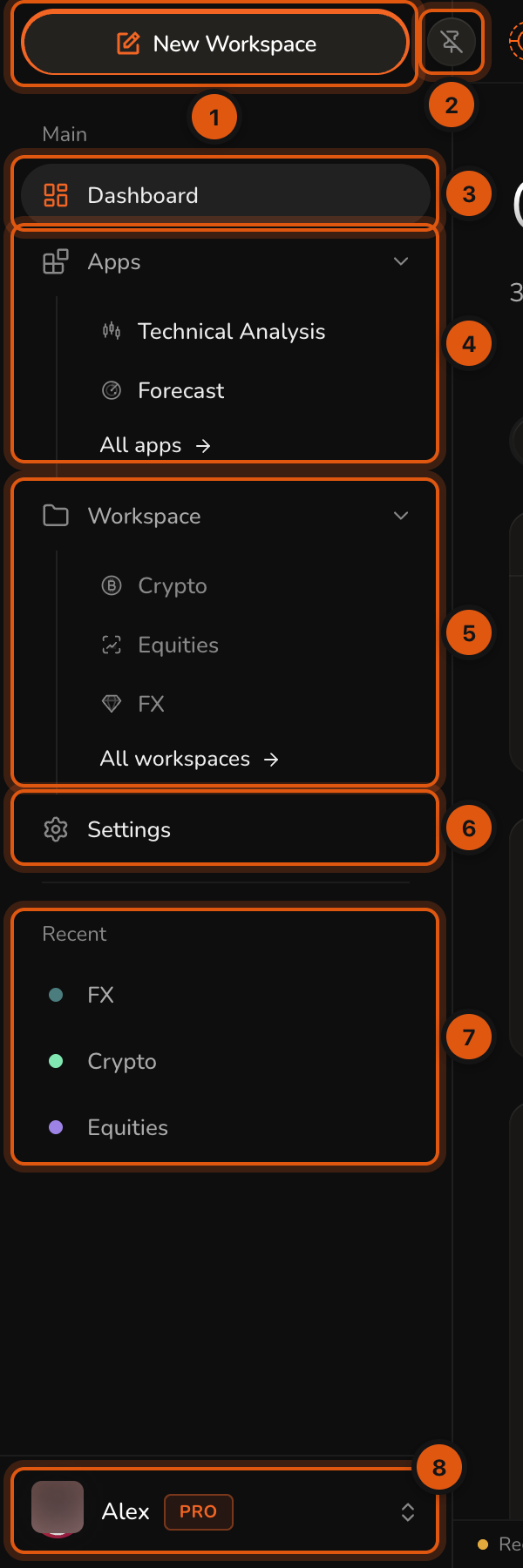
- New Workspace creates a workspace. See Workspaces.
- Pins or unpins the sidebar.
- Dashboard, your home screen. See Dashboard.
- Apps: open Technical Analysis or Forecast directly, or browse All apps.
- Workspace: your workspaces, with an actions menu (⋯) on each. All workspaces opens the full list.
- Settings. See Settings.
- Recent: the workspaces you opened last.
- Your account and plan.
The command bar
Press ⌘K on Mac or Ctrl+K on Windows from anywhere to open the command bar. Type a few letters of a workspace, app, page or setting, use the arrow keys to move, and press Enter to go.
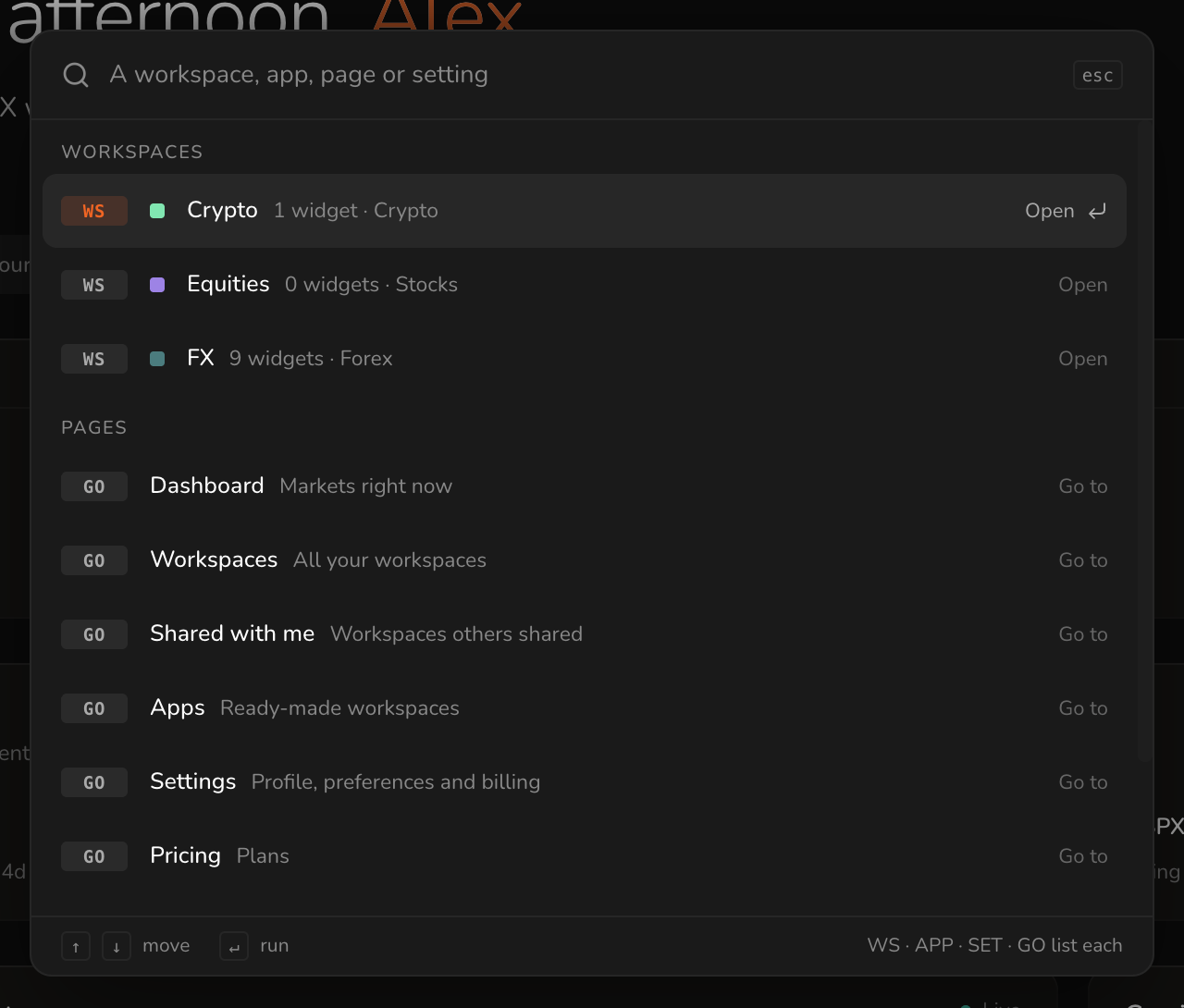
Results are grouped: WS for workspaces, APP for apps, SET for settings and GO for pages.
Inside a workspace the command bar also runs widget codes: type G for a chart, N for the news, or EURUSD G H4 for a four-hour EUR/USD chart. See Widget codes.
Notifications
The bell in the top bar shows how many notifications are unread. Click it to open the panel. Filter by Forecasts, Calendar or System, and click a notification to open what it refers to.
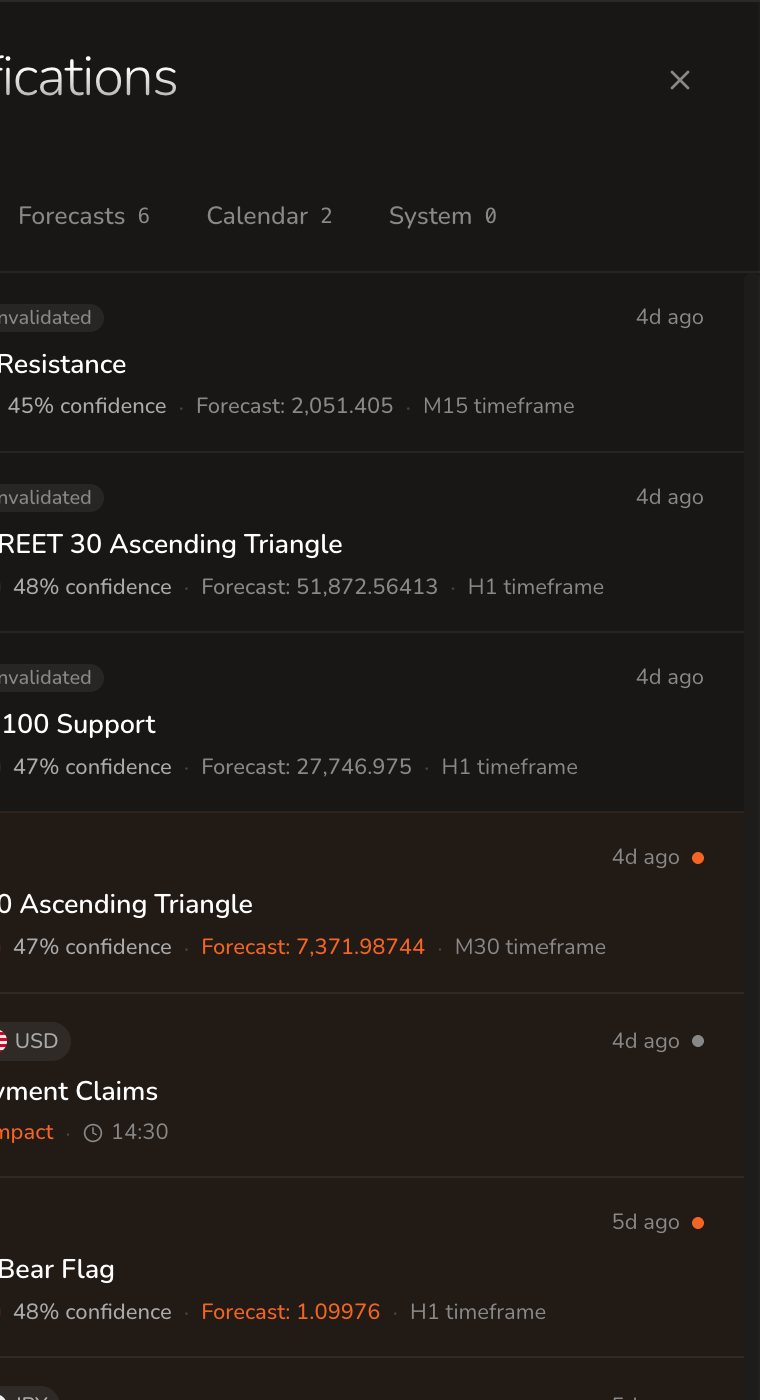
Each forecast notification shows its status (for example Invalidated), the instrument and pattern, the direction, the confidence, the forecast target and the timeframe. See Notifications.
The status bar
The status bar along the bottom keeps the state of the market and your account in view.

- Quick navigation: Dashboard, Apps, Workspaces and Settings, for when the sidebar is tucked away.
- Connection: whether live updates are connected. Reconnecting means the app is restoring the live connection.
- Data delay: how far behind real time your feed runs on your plan. Hover for detail.
- Forecasts: today's forecast count and the change against yesterday. Hover for today's average and high-confidence counts.
- Sessions: which major markets are open now (Sydney, Tokyo, London, New York).
- Next event: the next high-impact economic release and the time until it.
- Plan: your current plan. Click to manage it.
- Clock: the current time in your timezone. Click to change it in Preferences.
- Theme: switches between dark and light.
- Support: contact support, the help centre, the community, or copy your support details.
- About: the website and legal pages.
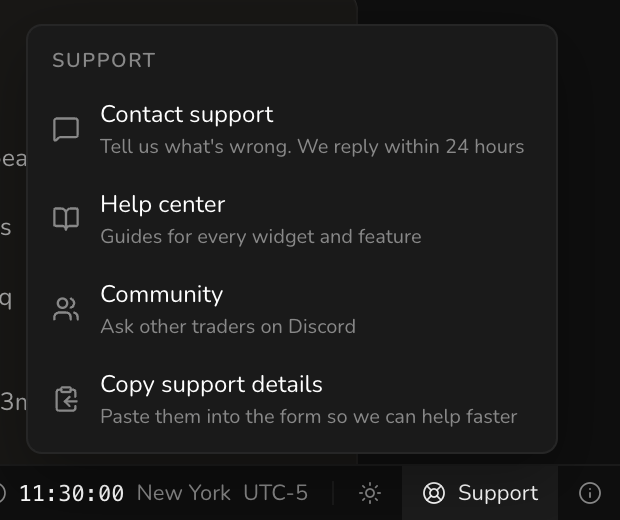
Copy support details copies the technical details of your session, so you can paste them into a support request.
Keyboard shortcuts
| Shortcut | Where | What it does |
|---|---|---|
| ⌘K / Ctrl+K | Anywhere | Opens the command bar |
| Any letter or number | Chart | Opens symbol search with what you typed |
| Home / End | Chart | Jumps to the first or latest bar |
| Page Up / Page Down | Chart | Scrolls the chart back or forward |
| Delete / Backspace | Chart | Removes the selected drawing |
| / | News, Catalogue | Focuses the search box |
| ↑ / ↓ | News, Catalogue, command bar | Moves through the list |
Chart shortcuts work while the pointer is over the chart.