
Trader Notes Widget
Trader Notes is a journal that lives inside your workspace. Write up a thesis, record why you took a setup, or keep a table of open positions, without leaving the platform for a separate notes app.
Do not close the widget if you want to keep your notes. Everything you have saved lives inside the widget and goes with it. See Saving notes below.
Adding it to a workspace
Click Widget in the top bar and pick Trader Notes, or choose Open Widget Store to add several widgets at once.
Writing a note
A new note opens with a Title field and an empty body. Give it a title, write your analysis, and click Save Note.
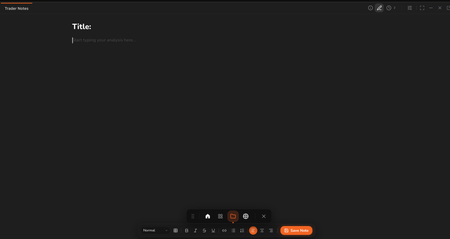 A new, empty note.
Saving notes
Notes do not save automatically. Nothing is stored until you click Save Note, so anything typed and left unsaved is lost.
Saving files the note into your saved notes, reached through the clock icon. The editor then clears, ready for the next note.
Closing the widget deletes everything. Your saved notes live inside the Trader Notes widget rather than in your account. Closing the widget removes the widget and every note in it, including saved ones. Adding Trader Notes back gives you an empty widget with no saved notes.
If you need the screen space, minimise the widget rather than closing it.
Formatting
A toolbar sits along the bottom of the widget.
 The formatting toolbar.
Reading left to right:
| Control | What it does |
|---|---|
| Normal | Block style, covering headings and paragraph styles |
| Table | Inserts a table |
| B, I, S, U | Bold, italic, strikethrough, underline |
| Link | Turns selected text into a link |
| Lists | Bulleted and numbered |
| Alignment | Left, centre, or right |
| Save Note | Saves the note |
Tables
Click the table button and a grid appears. Drag across it to choose the size, which is previewed above the grid as you go, then click to insert.
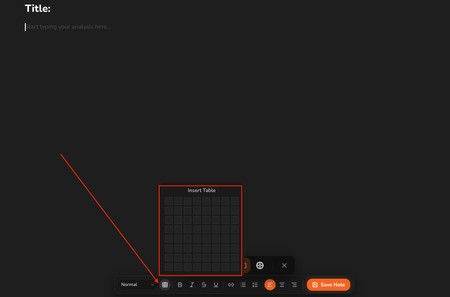 Choosing a table size. The label above the grid updates as you drag.
The table arrives with named column headers you can rename, and every cell has a handle in its corner for resizing.
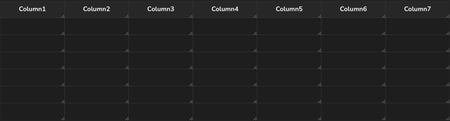 An inserted table.
Editing a table
Put the cursor inside a table and the formatting toolbar changes to table controls.
 The toolbar while the cursor is in a table.
The four arrows insert a row above, a row below, a column to the left, or a column to the right. The two red buttons delete the current row and the current column.
This is what makes the table useful for a multi leg trade or a series of scale ins: add rows as the position develops rather than planning the shape upfront.
Trade setups
The sliders icon in the widget header opens a structured Trade Setups panel above your note.
 The Trade Setups panel.
Each setup records:
| Field | What it holds |
|---|---|
| Ticker | The instrument, for example BTC |
| Setup | Your entry price |
| Target | Where you expect to take profit |
| Stop loss | Where the idea is wrong |
| Sentiment | Bullish, neutral, or bearish |
Add Trade Setup adds another row, so one note can carry several ideas.
This is the structured half of the widget. Use the setup fields for the numbers and the note body for the reasoning behind them.
The same button hides the panel again when you want the full width for writing.
Saved notes
The clock icon opens your saved notes, with a count beside it so you can see how many you have.
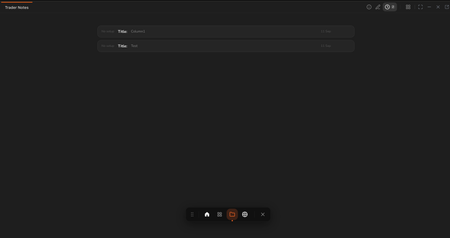 Saved notes, each showing its title, the date it was saved, and whether it carries a trade setup.
Each entry shows the note's title, the date, and whether a trade setup is attached. Click one to open it.
Editing a saved note
Open a note from the list and it loads into the editor. The button changes from Save Note to Update Note, with Cancel beside it to back out without changing anything.
 Editing a saved note. The save button becomes Update Note.
Starting a new note
Click the pencil icon to leave whatever you are viewing and start a fresh, blank note. Saving it adds it to the list as a new entry rather than replacing anything.
So the cycle is: write, save, and the note joins the list. Open it again later to update it, or start a new one from the pencil.
Widget controls
| Control | What it does |
|---|---|
| Info | A short description and a Learn more link to this page |
| Edit | Writing mode |
| Clock | Your saved notes, with a count |
| Sliders | Shows or hides the Trade Setups panel |
Alongside these are the standard expand, minimise, close, and pop out controls.
Important notes
The formatting toolbar can be covered. When the sidebar is collapsed, the floating navigation dock appears at the bottom centre of the screen, over the Trader Notes toolbar. Drag the dock clear using the grip on its left edge, or close it with its cross. It stays where you put it.
Related
- Live Forecasts widget. Copy a setup or forecast price straight into a trade setup.
- Chart widget. Capture a chart image to accompany your written analysis.